How to Deploy Wallpapers, Lock Screen Images, Screensavers, and Outlook Signatures Using Microsoft Endpoint Configuration Manager (MECM/SCCM)

Maintaining consistent visual branding across an enterprise environment is essential for corporate identity, user experience, and internal communication. Microsoft Endpoint Configuration Manager (MECM/SCCM) offers robust deployment mechanisms that enable centralized management of desktop wallpapers, lock‑screen images, video screensavers, and Outlook email signatures. This article provides a detailed, practical framework for implementing these assets using MECM, including packaging, distribution, and configuration approaches.
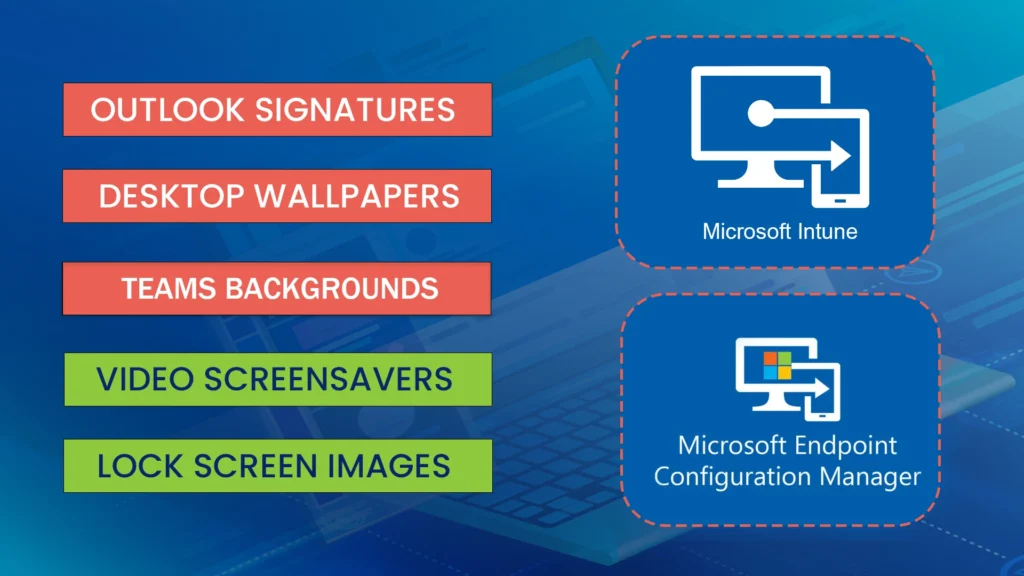
If you are in an enterprise environment, click the image below to learn how to better manage your Windows branding. Deploying desktop wallpapers, lock‑screen images, Outlook signatures, video screensavers, and Teams backgrounds across your enterprise is easier this way. Click here to learn more.
1. Understanding the Deployment Approach in MECM
MECM is designed to deploy software, scripts, configurations, packages, and operating system images at scale. For user‑interface personalization elements like wallpapers or signatures, MECM typically uses one of the following deployment models:
- Packages with scripts
- Task Sequences
- Win32 application–style deployments (PowerShell‑driven)
- Integration with third‑party packagers (e.g., WPSecure Personalization Packager)
These methods allow administrators to copy files locally, modify registry keys, and enforce corporate policies through automation.
2. Deploying Desktop Wallpapers
2.1 Creating a Wallpaper Deployment Package
Microsoft’s guidance describes deploying wallpapers via a package plus task sequence containing a PowerShell script to copy and apply the image. The workflow includes:
- Creating a package that contains the wallpaper image and script
- Distributing the package to distribution points
- Creating a task sequence containing a single “Run PowerShell Script” step
- Deploying this task sequence to a device collection
[learn.microsoft.com]
This approach works for both OSD scenarios and existing Windows 10/11 devices, with no functional differences—simply deploy a custom task sequence to existing endpoints.
[learn.microsoft.com]
2.2 Recommended Script Actions
A typical wallpaper script should:
- Copy the wallpaper file into:
C:\Windows\Web\Wallpaper\Company\ - Update the registry:
HKCU:\Control Panel\Desktop\Wallpaper - Force a policy refresh and perform a logoff or
RUNDLL32.EXE user32.dll, UpdatePerUserSystemParameters
This ensures the wallpaper is applied consistently across all users on the device.
3. Deploying Lock‑Screen Images
Lock‑screen deployment uses a very similar approach to wallpaper deployment. Third‑party enterprise‑grade personalization packaging guidance outlines the same process—design, package, and deploy using MECM as a standard application.
[wpsecure.shop]
3.1 Requirements
Lock‑screen images must be:
- Correctly sized for all monitor resolutions (e.g., 1080p, 1440p, 4K, 5K, 8K)
[wpsecure.shop] - Copied to a local path such as
C:\Windows\Web\Screen\Company\ - Applied through registry keys or theme configuration
When using scripts bundled into a Win32-style MECM application, the script can iterate through all user profiles, update PersonalizationCSP‑compatible registry entries, and log all actions.
[jamesvincent.co.uk]
4. Deploying Screensavers (Including Video Screensavers)
Screensavers—particularly modern video‑based ones—are increasingly used for communication campaigns or internal marketing. Enterprise personalization guidance confirms that MECM can deploy MP4-based video screensavers packaged as part of a Windows personalization bundle.
[wpsecure.shop]
4.1 Steps for Screensaver Deployment
Screensavers typically require:
- Copying the
.scror.mp4assets to a standard location - Modifying:
HKCU\Control Panel\Desktop\SCRNSAVE.EXE
to point to the corporate screensaver - Setting timeout and enable flags
- Ensuring Windows Spotlight and slideshow features are disabled (important for lock‑screens and screensavers)
[jamesvincent.co.uk]
These steps can be encapsulated in a PowerShell script and deployed as a MECM application.
5. Deploying Outlook Signatures
Outlook signatures are often overlooked but are a critical branding component. Enterprise personalization packaging guidance shows how signatures can be bundled and deployed using MECM by including:
- HTML signatures
- RTF signatures
- TXT templates
- Support for Outlook Classic, Outlook New, and Outlook Web
[wpsecure.shop]
5.1 Deployment Package Contents
A MECM application may include:
- Signature files in all required formats
- A PowerShell script that copies files to:
%APPDATA%\Microsoft\Signatures\ - An uninstall script to remove outdated versions
MECM handles assignment, delivery, detection rules, and version control.
6. Packaging and Deployment Best Practices
6.1 Preparing a Unified Personalization Package
WPSecure Personalization Packager supports bundling wallpapers, lock‑screens, Outlook signatures, Teams backgrounds, and screensavers into a single silent installer for deployment via MECM.
[wpsecure.shop]
This approach allows:
- Centralized version control
- Clean installation and removal
- Support for multiple screen resolutions (1080p through 8K)
[linkedin.com]
6.2 Using Win32 App Deployment Patterns
Although designed for Intune, Win32 deployment patterns (PowerShell script + media + detection rules) can be mirrored within MECM to ensure reliable delivery and uninstall pathways.
[github.com]
7. Deployment Workflow Summary
Below is an example high‑level workflow for MECM-based personalization deployment:
- Design
Create all images (wallpapers, lock‑screens, signatures, screensavers) in appropriate resolutions.
[linkedin.com] - Package
Build a package (custom script or third‑party packager) that includes:- Images
- Scripts
- Registry changes
- Detection logic
- Distribute
Send the package to your MECM distribution points. - Deploy
Deploy using:- Task sequence
- Application model
- Package/program model
depending on your organization’s standards.
- Verify
Validate deployment through MECM monitoring, script logs, and test devices.
[github.com]
Conclusion
Microsoft Endpoint Configuration Manager (MECM/SCCM) remains a powerful tool for centrally managing brand-consistent desktop experiences across the enterprise. By leveraging packages, task sequences, refined scripting, and optional third‑party packaging tools, administrators can reliably deploy desktop wallpapers, lock‑screen images, video screensavers, and Outlook signatures to thousands of devices with precision and repeatability.